What That Tiny Hole at the Bottom of Your Phone Really Does
Smartphones travel with us almost everywhere, so it is normal for dust and lint to collect around their edges.
Keeping the device clean can help prevent some problems, but cleaning should be done carefully.
Follow these steps when the microphone area needs attention.
Step 1: Turn Off the Phone
If you plan to clean around the openings, switch off the device first when practical.
This reduces the chance of accidentally activating controls while you handle the phone.
Step 2: Remove the Case
A case may collect dust around the microphone opening or partially cover it.
Remove the case and inspect both the phone and the case for debris.
Step 3: Examine the Opening
Use good lighting to check whether visible lint or dust is present.
Do not assume that the hole is blocked simply because the phone is experiencing an audio problem.
Step 4: Use a Soft, Dry Brush
Gently brush away loose surface debris.
Avoid pressing hard against the opening or forcing the brush deep inside.
Step 5: Test the Microphone
After cleaning, record a short voice memo or make a test call.
Listen for changes in sound quality.
If the problem remains, investigate other possibilities rather than repeatedly cleaning the opening.
For detailed cleaning instructions, follow the manufacturer’s guidance for your specific device.
10. What If Your Phone Has Water Resistance?
Many modern smartphones are designed with some level of resistance to water and dust.
However, water resistance does not mean that every opening is completely sealed against all substances or that the device is waterproof under every condition.
The level of protection varies by model, and resistance can decrease over time because of wear, drops, repairs, or damage.
Microphone openings may incorporate protective membranes or other design features, but this does not make them suitable for aggressive cleaning.
If your phone gets wet, follow the manufacturer’s drying instructions.
Do not insert objects into the microphone opening, use a hair dryer on high heat, or apply compressed air in an attempt to force water out.
Avoid charging a device while its charging port is wet.
If sound quality remains poor after exposure to water, allow the phone to dry according to the manufacturer’s recommendations and seek professional assistance if necessary.
11. How to Test Whether the Microphone Is Working
If you suspect the microphone is not working correctly, a few simple checks may help.
Record a Voice Memo
Open your phone’s built-in voice recording application and record a short sentence in a quiet room.
Play it back and listen for clarity, volume, and distortion.
Make a Test Call
Call someone you trust and ask whether your voice sounds normal.
If possible, compare a regular call with a call made through a different application.
Check Application Permissions
Some applications require permission to access the microphone.
If only one app has a problem, check its microphone permission in the phone’s settings.
Disconnect Bluetooth Accessories
Your phone may be using a Bluetooth headset, wireless earbuds, or another connected device’s microphone.
Temporarily disconnect Bluetooth accessories and test again.
Remove the Case
A poorly fitted case or accessory may cover the microphone opening.
Test the phone without the case to see whether the sound improves.
Restart the Device
A restart may resolve temporary software problems.
If several tests continue to produce poor audio, the microphone may require professional inspection.
12. Does the Tiny Hole Record You All the Time?
Because microphones are capable of capturing sound, some people worry that a small opening could be recording them continuously.
The presence of a microphone opening does not mean that the phone is constantly recording everything around it.
Microphones are used by phone calls, recording applications, voice assistants, and other features when permitted by the device’s operating system and software.
The exact behavior depends on the phone, its settings, the applications installed, and the permissions granted.
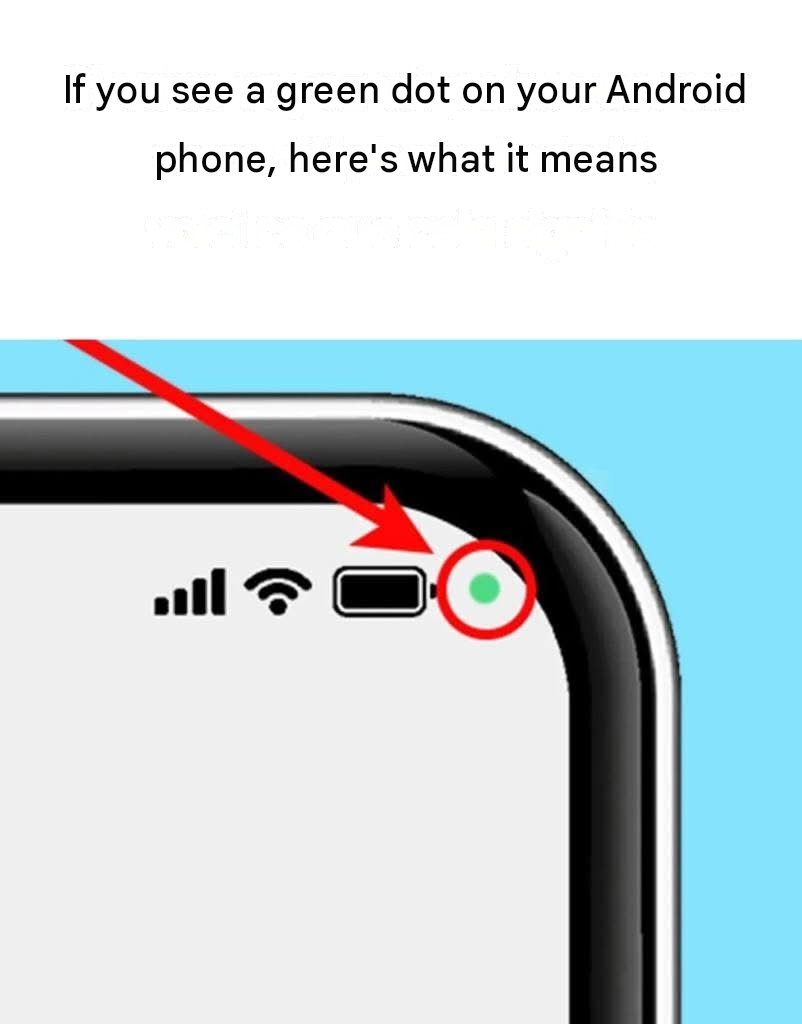
Modern smartphone operating systems generally provide microphone permission controls and indicators that can help users understand when applications access the microphone.
You can review which applications have microphone access and revoke permission from applications that do not need it.
Be careful when installing unfamiliar applications, and review their permissions before granting access to sensitive features.
If your phone supports a microphone-use indicator, learn how it works so you can recognize when an application is accessing the microphone.
The important point is that the tiny hole is a physical part of the microphone system. It does not, by itself, indicate that recording is taking place.
13. Why Different Phones Have Different Hole Arrangements
You may notice that the bottom of one smartphone has a single small opening, while another has several holes arranged in a row.
These designs can look similar even when the openings have different purposes.
Depending on the model, the bottom edge may contain:
A microphone opening.
Speaker openings.
A charging port.
A SIM tray or its eject mechanism on some designs.
The number and arrangement of these components vary.
A row of holes on one side of a charging port may serve as a speaker grille, while a single small opening nearby may serve as a microphone.
However, this layout is not universal.
Some phones place speakers in different locations, use stereo speaker systems, or arrange microphones differently.
You should therefore avoid identifying a component based only on its position in a photograph.
If you need to know the exact function of a particular opening, the phone’s model number and manufacturer’s documentation are the most reliable sources.
Final Thoughts
That tiny round hole at the bottom of your smartphone may look insignificant, but it often provides access to one of the phone’s most important components: the microphone.
It helps capture your voice during phone calls, records audio for voice messages, and may contribute to video recording and other sound-related features.
Because the opening is small, dust and lint can sometimes interfere with sound capture. Careful inspection and gentle cleaning may help, but the microphone should never be probed with a needle, pin, or SIM-ejector tool.
Remember that smartphone designs differ. Not every small opening has the same function, and the exact layout depends on the device.
If your microphone stops working properly, test it with a voice recording, check application permissions, disconnect Bluetooth accessories, and remove the case before assuming that the hardware is damaged.
A tiny opening can serve an important purpose, and understanding what it does can help you protect your phone and avoid unnecessary repairs.